



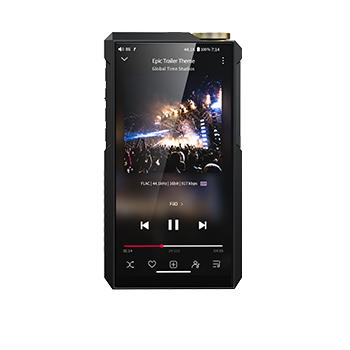



























12. How to Use the FIIO Link Control Function on the DT11
How to Set Up FIIO Link via Bluetooth
Follow these three steps to configure the FiiO Link Bluetooth control:
-
On DT11, open the FIIO Music app and go to Settings > FIIO Link. Tap the "..." icon in the upper-right corner, select Bluetooth, and set the device as the Server.
-
Pair the DT11 with your smartphone via Bluetooth. Enable Bluetooth on the DT11, find the DT11 in your smartphone's Bluetooth settings, and confirm the pairing request on both devices.
-
On your smartphone, open the FIIO Music app and go to Settings > FIIO Link. Tap the "..." icon in the upper-right corner, select Bluetooth, and set the phone as the Client. Select the DT11 from the list of paired devices to start using FIIO Link via Bluetooth.
Note: iPhones support FIIO Link via Wi-Fi only. Bluetooth control is not supported.
How to Set Up FIIO Link via Wi-Fi
Follow these three steps to configure FIIO Link Wi-Fi control:
-
Connect the DT11 and your smartphone to the same Wi-Fi network.
-
On DT11, open the FIIO Music app and go to Settings > FIIO Link. Tap the "..." icon in the upper-right corner, select Wi-Fi, and set the device as the Server. An IP address will then be displayed.
-
On your smartphone, open the FIIO Music app and go to Settings > FIIO Link. Tap the "..." icon in the upper-right corner, select Wi-Fi, and set the phone as the Client. Enter the IP address displayed on the M11 Plus and confirm the connection to start using FIIO Link via Wi-Fi.
Note: iPhones support FIIO Link via Wi-Fi only. Bluetooth control is not supported.
