





























4. How to Access the DT11's Storage When Connected to a Computer
For Windows:
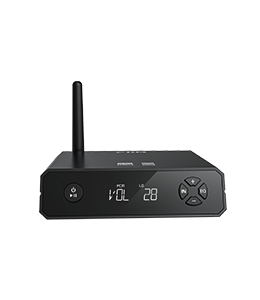
No additional driver installation is required. Simply connect the DT11 to your computer using the original USB cable, and Windows will automatically install the necessary drivers.
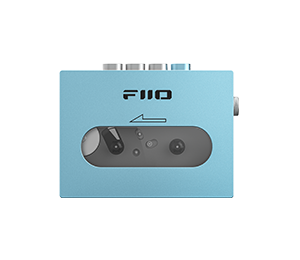
Once connected, locate FIIO DT11 under this PC to access and manage the device's storage.
For Mac:
1. Visit the official FIIO website at https://www.fiio.com/Driver_Download and download the Android File Transfer.dmg file. Save the downloaded file to your desktop.
-
Double-click Android File Transfer.dmg to open it. Drag the Android File Transfer application icon into the Applications folder and wait for the installation to complete.
-
Connect the DT11 to your Mac using a USB cable.
-
Open the Applications folder and double-click Android File Transfer to access the DT11's storage and manage its files.
Note: The next time you connect the DT11 to your Mac, the DT11 storage window should automatically appear on your desktop.
